Lock it down
Set a password so a confidential contract, statement, or report only opens for someone who knows it.
Password locks a PDF so only the right people can open it - or, when you already hold the password, strips that protection off so a document stops asking every single time you open it.
Start the 14-day trial in the app. No payment method is required to try Foldout.
Use Foldout only with files and content you own or have permission to process.
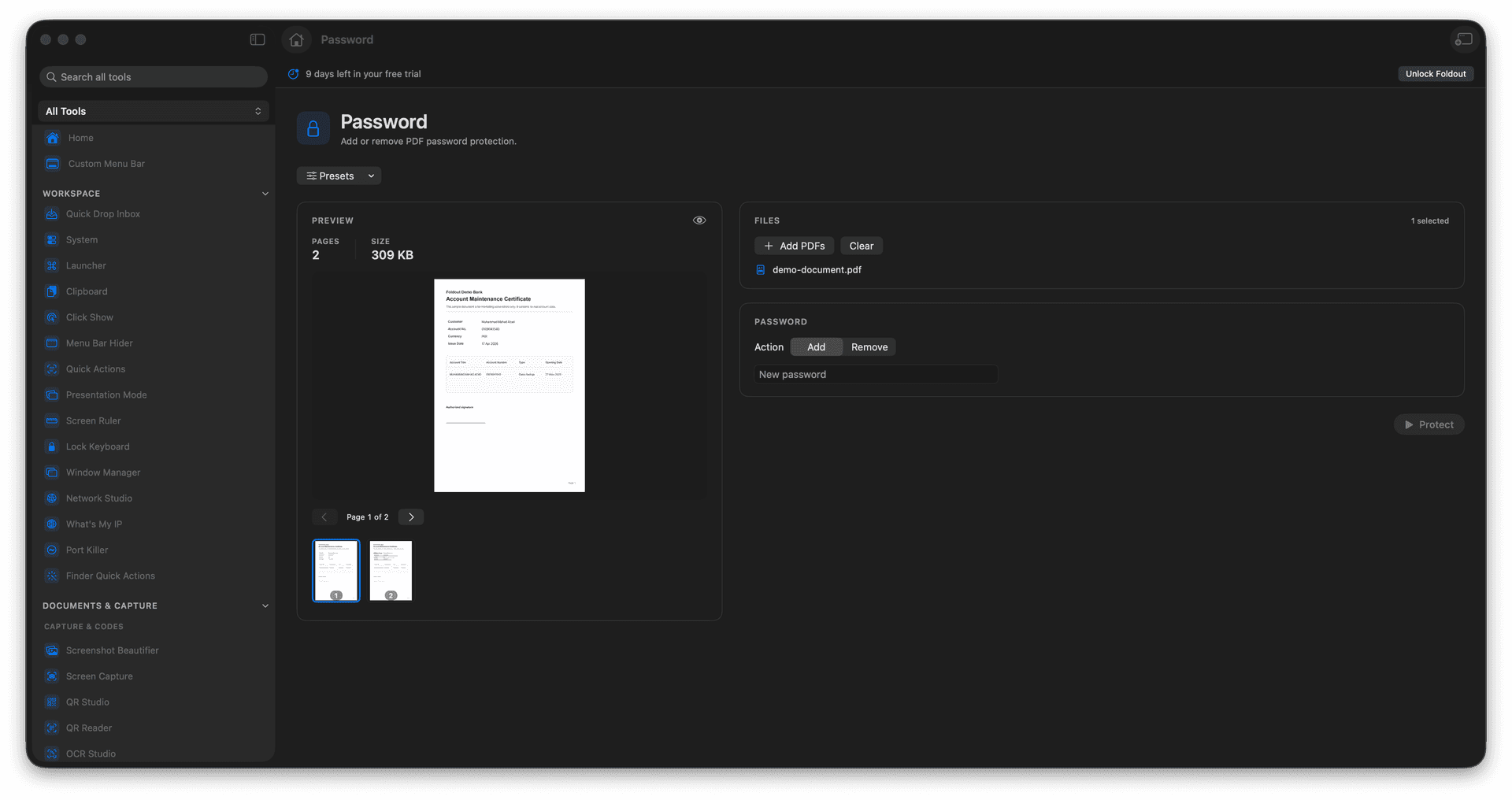
Add a password to protect a PDF.
Remove protection when you have the password.
Control who can open a sensitive document.
A new PDF is written either way.
Concrete features, inputs, and workflow details for this tool.
Set a password so a confidential contract, statement, or report only opens for someone who knows it.
When you already have the password, remove it so a frequently opened document stops prompting every time.
Either operation writes a new PDF, leaving the original file untouched.
Add a PDF.
Choose add or remove password.
Enter the required password details.
Save the output PDF.
It can remove protection only when the required password is available.