Automatic, motivated zoom
As you click around, the camera glides in to frame the action and drifts back out when you move on - the same push-ins an editor would add by hand, decided automatically from where you actually worked.
Cinematic Recorder captures your screen and choreographs the rest for you - the camera glides in on whatever you click, the cursor moves like silk, clicks ripple, keystrokes caption themselves, and the whole thing sits on a soft, padded backdrop. Press stop and you have a polished product demo, not raw screen footage.
Start the 14-day trial in the app. No payment method is required to try Foldout.
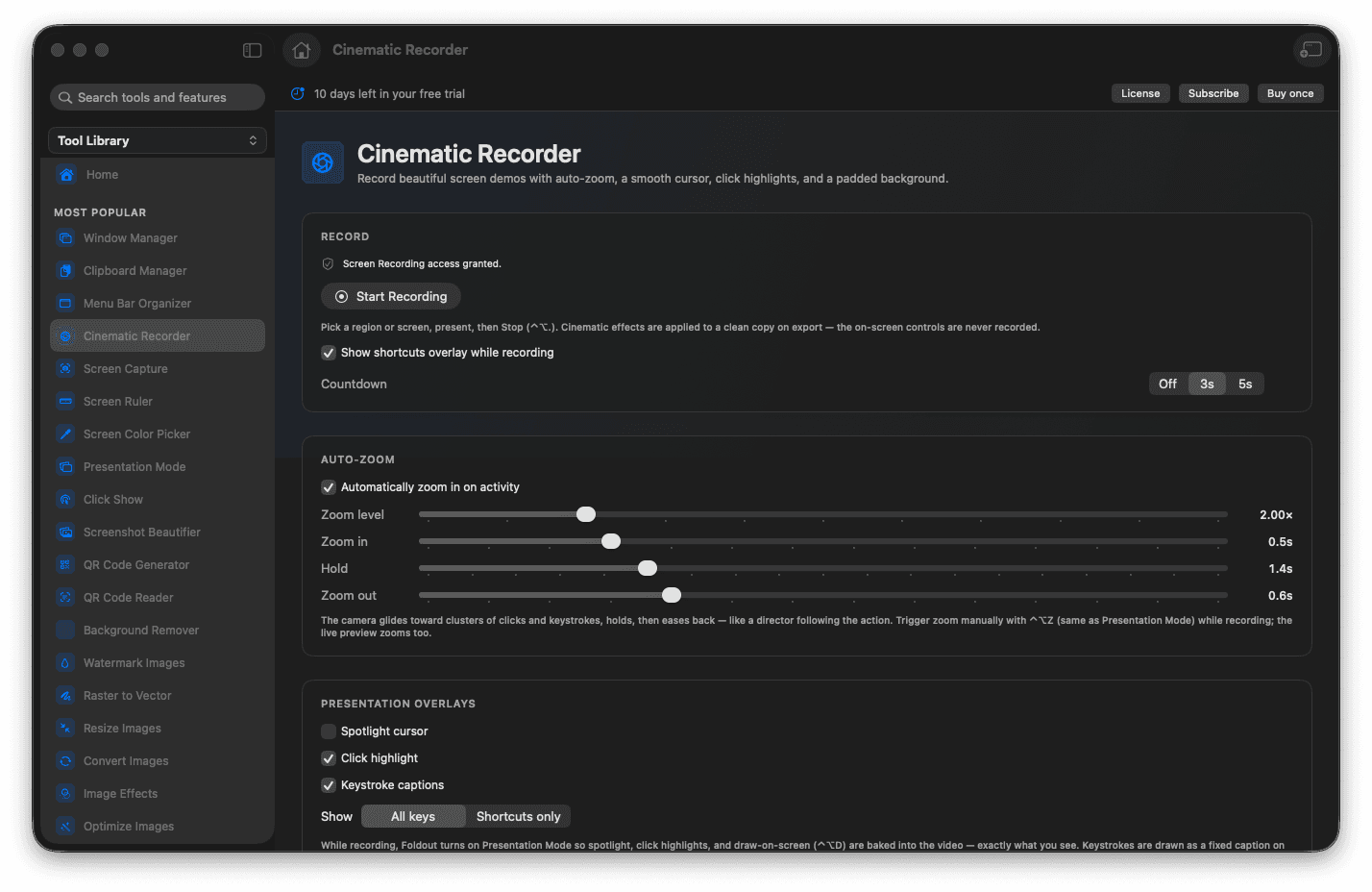
Auto-zoom pushes in on the exact spot you click, then eases back out, so viewers never lose the thread.
Your real cursor is redrawn smooth and resizable, with soft click ripples and optional keystroke captions.
Frame the recording on a gradient, a solid color, or edge-to-edge, with rounded corners and a gentle shadow.
Frame the shot in a tap: full screen, the visible area, with or without the menu bar and Dock, or press Space to pick a window.
Add animated intro and outro cards, drop in saved text animations as overlays, then preview the whole piece on one timeline before you export.
Already exported a take? Re-open the timeline, adjust the text, cards, or timing, and render again - no need to re-record.
Export at the resolution, quality, codec, and frame rate you choose.
Concrete features, inputs, and workflow details for this tool.
As you click around, the camera glides in to frame the action and drifts back out when you move on - the same push-ins an editor would add by hand, decided automatically from where you actually worked.
Foldout redraws your real pointer so it glides between targets instead of skipping, scales it up for dense screens, and rings each click with a soft ripple. Keystrokes can caption themselves in the corner as you type.
Drop the recording onto a gradient, a solid color, or pure black, with adjustable padding, rounded corners, and a drop shadow, so a plain window reads as a finished product shot.
Drag any region, or use a preset - full screen, the visible area, with or without the menu bar and Dock - or press Space to pick a window. Nudge the edges with the arrow keys before you start.
Open animated title cards at the start and end, drop in overlays from your saved text-animation library, then scrub the whole sequence on one timeline. Already exported? Re-open it, change anything, and render again - the recording stays editable.
A floating control bar and a shortcut overlay let you pause, hold a manual zoom, spotlight the cursor, draw on screen, and stop - and none of it lands in the final video.
Open Cinematic Recorder and choose a backdrop, zoom style, and cursor look.
Pick the area with a preset or a drag - full screen, the visible area, or press Space to pick a window - then start after the countdown.
Work normally - click to zoom, or use shortcuts for a held zoom, spotlight, and drawing.
Press stop, then add intro and outro cards and text overlays - including saved ones from your library - in the timeline editor.
Choose your resolution, quality, and format and export - then re-open the timeline anytime to adjust and render again.
Yes. The camera pushes in around where you click and eases back out on its own. You can also hold a manual zoom with a shortcut whenever you want to stay close.
No. The floating controls, shortcut overlay, and countdown are kept out of the capture, so the exported video shows only your screen.
Yes. You can open animated title cards before and after the recording and preview the whole sequence on one timeline before exporting.
Yes. After a render, re-open the timeline editor to change text, cards, zoom, or timing and render again - you do not need to re-record.
Yes. When you pick the area, press Space to highlight and click a window, or use a preset for full screen or the visible area.