Object and region capture
Use the interactive selector to drag a region or capture an object/window-style target, then Foldout opens the result in the editor.
Screen Capture is every screenshot you need in one tool - drag a region, grab an object or window, take the whole display, or scroll a long page into a single tall image - then mark it up with arrows, boxes, text, blur, and redaction before you copy, save, or pin it on top while you work.
Start the 14-day trial in the app. No payment method is required to try Foldout.
Use Foldout only with files and content you own or have permission to process.
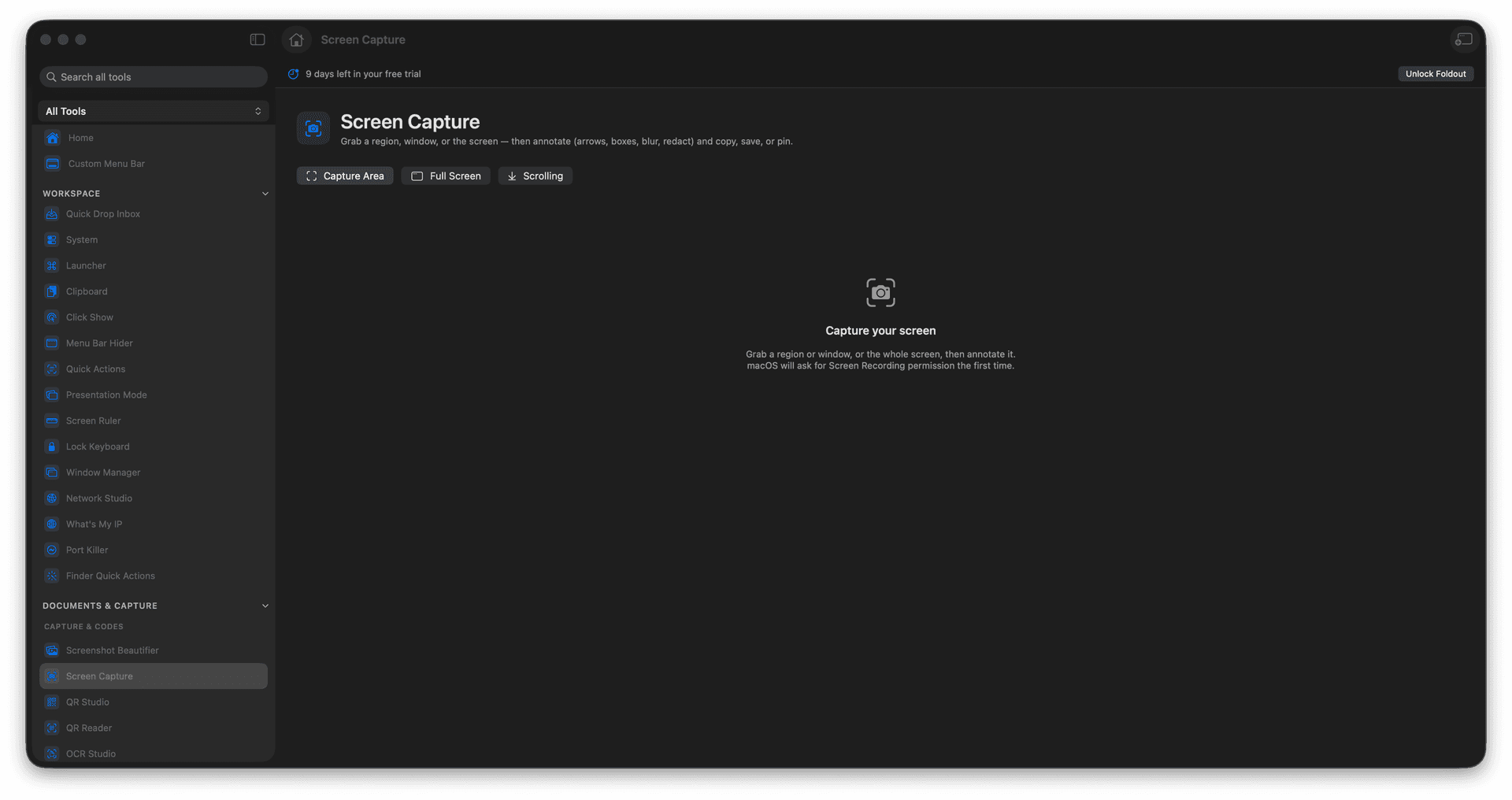
Capture a region, an object or window, the full screen, or a scrolling page.
Stitch a long, scrolling page into one tall screenshot.
Annotate with arrows, boxes, text, steps, highlights, blur, pixelate, and redact.
Copy, save, or pin the result above other windows.
Crop, undo, redo, and start a new capture from the same workspace.
Concrete features, inputs, and workflow details for this tool.
Use the interactive selector to drag a region or capture an object/window-style target, then Foldout opens the result in the editor.
Select a scrollable area, scroll through the content, and Foldout stitches the frames into one tall screenshot.
Add arrows, boxes, lines, text, step markers, highlights, pen strokes, blur, pixelation, redaction, crop, undo, redo, and selection edits.
Copy the finished screenshot, save it as an image, or pin it above other windows while you keep working.
Open Screen Capture.
Choose Capture Area, Full Screen, or Scrolling.
For scrolling capture, select the scroll area and scroll through the content until it is complete.
Annotate, crop, copy, save, or pin the screenshot.
macOS may ask for permission when screen capture is used.
Yes. Scrolling capture lets you select a scrollable region and stitch the scrolled content into one tall screenshot.
Yes. The capture flow supports interactive object/window-style selection as well as dragged regions and full-screen capture.