Pixels, not guesses
Measure exact distances and box sizes on screen, so spacing and sizing debates end with a number.
Screen Ruler lays precise measurement overlays right on top of whatever you are looking at - distances, boxes, alignment guides, even snapping to the edges of an on-screen object - across every display, so 'is that 16 or 20 pixels?' finally has an answer.
Start the 14-day trial in the app. No payment method is required to try Foldout.
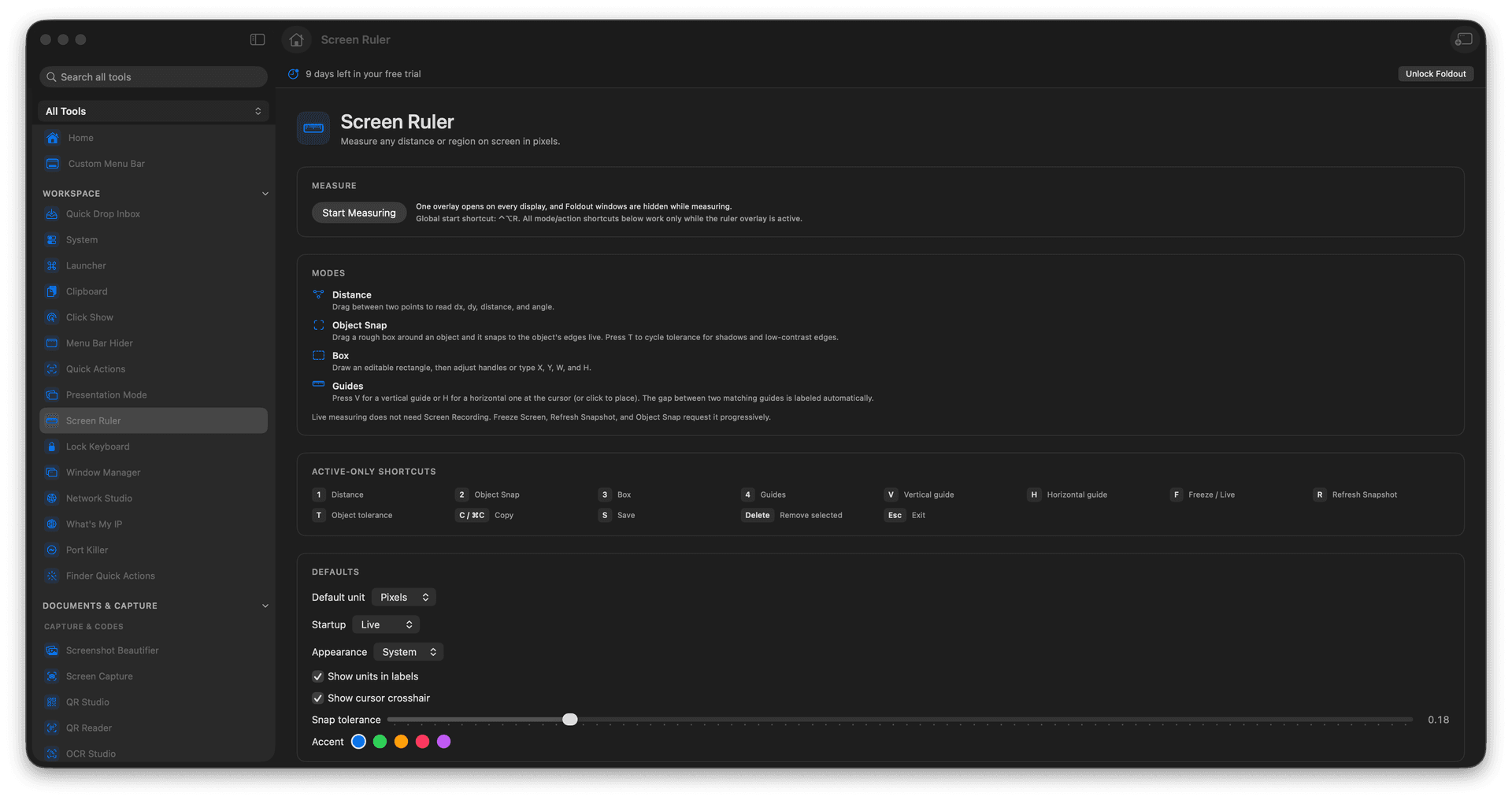
Measure pixel distances and box dimensions.
Drop alignment guides and a crosshair.
Snap measurements to on-screen objects.
Works across multiple connected displays.
Concrete features, inputs, and workflow details for this tool.
Measure exact distances and box sizes on screen, so spacing and sizing debates end with a number.
Place alignment guides and let the ruler snap to the edges of a button or card for a clean read.
Measure across all your connected screens, wherever the thing you need to size happens to be.
Start Screen Ruler.
Choose a ruler mode.
Measure the area or distance.
Copy, save, or exit the overlay.
Basic measuring is permission-free; frozen snapshots or smart snapping may require screen access.