Tighten the canvas
Pull the SVG bounds in to hug the visible art, so there are no invisible margins throwing off your alignment.
Trim SVG snaps the canvas tight around the visible artwork, cropping away the empty margins that make a vector float awkwardly in your layout - so an icon or logo sits flush and behaves itself in apps, docs, and websites.
Start the 14-day trial in the app. No payment method is required to try Foldout.
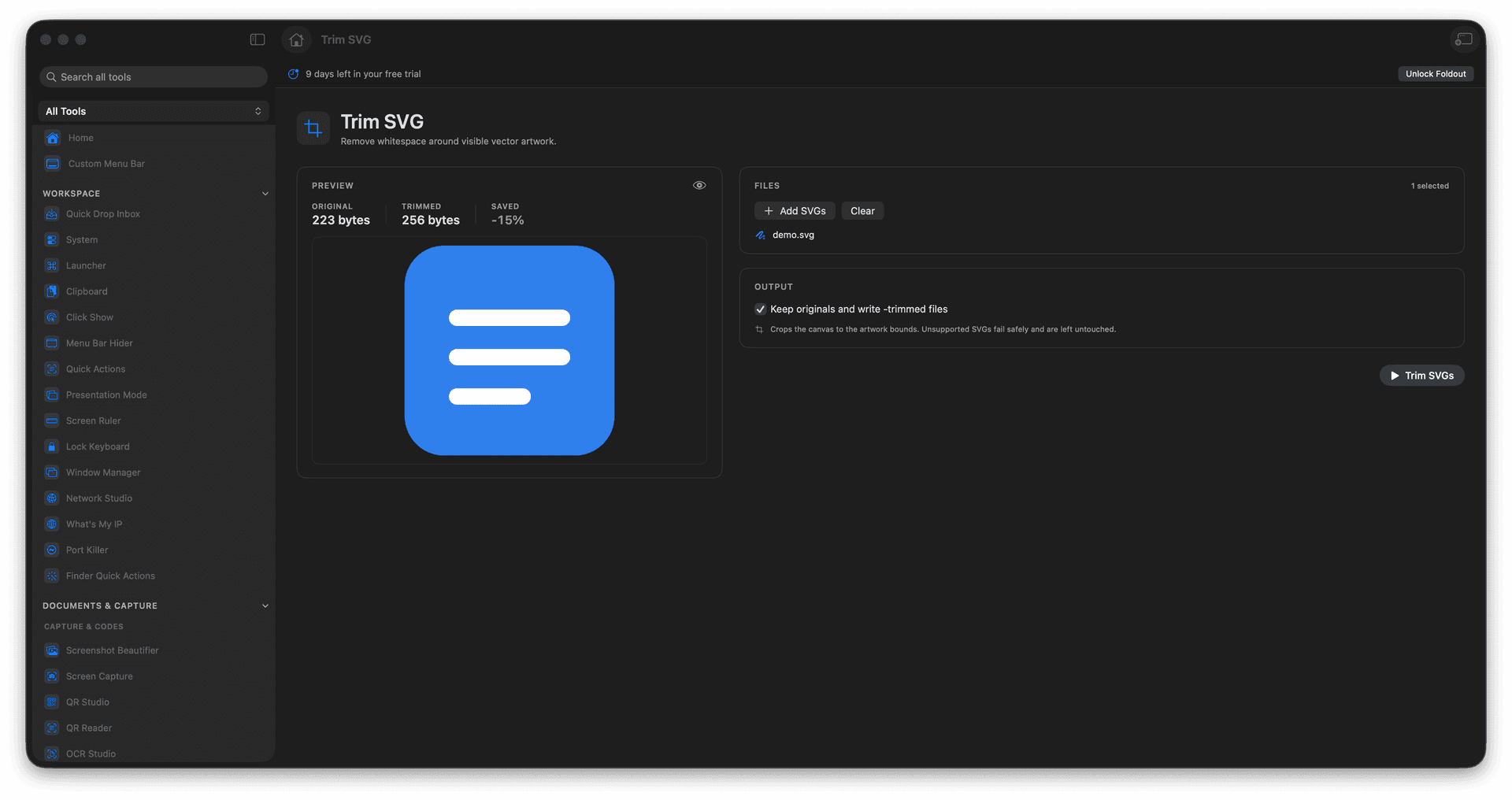
Crop empty space around the artwork.
Make an SVG sit flush in any layout.
Keep it fully scalable as a vector.
Save a cleaned-up SVG file.
Concrete features, inputs, and workflow details for this tool.
Pull the SVG bounds in to hug the visible art, so there are no invisible margins throwing off your alignment.
A trimmed icon or logo places cleanly in apps, docs, and on the web, instead of floating with mystery padding.
The output stays a crisp, scalable SVG, just without the wasted space.
Add an SVG.
Review the visible artwork.
Run the trim action.
Save the cleaned SVG.
No. It keeps the output as SVG.